We rebuilt the template editor
Live preview on WhatsApp, SMS and MMS, WhatsApp parts you edit in place, live checks, and copy-ready code for your app.

Emily Z
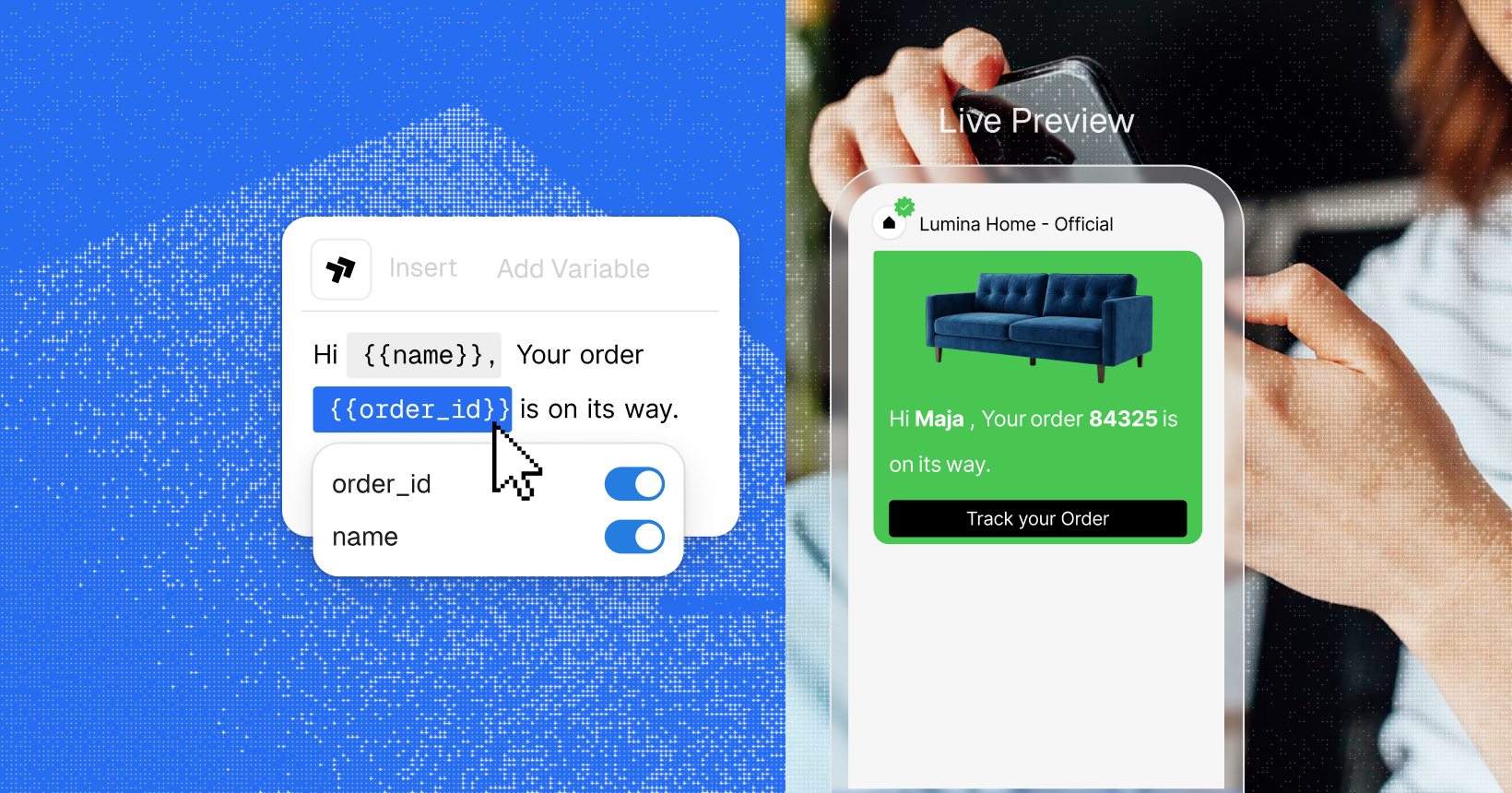
Live preview on WhatsApp, SMS and MMS, WhatsApp parts you edit in place, live checks, and copy-ready code for your app.
Emily Z
The sent crate brings all 82 operations of API v3 to typed async Rust, with pagination, retries and idempotency built in.
Emily Z
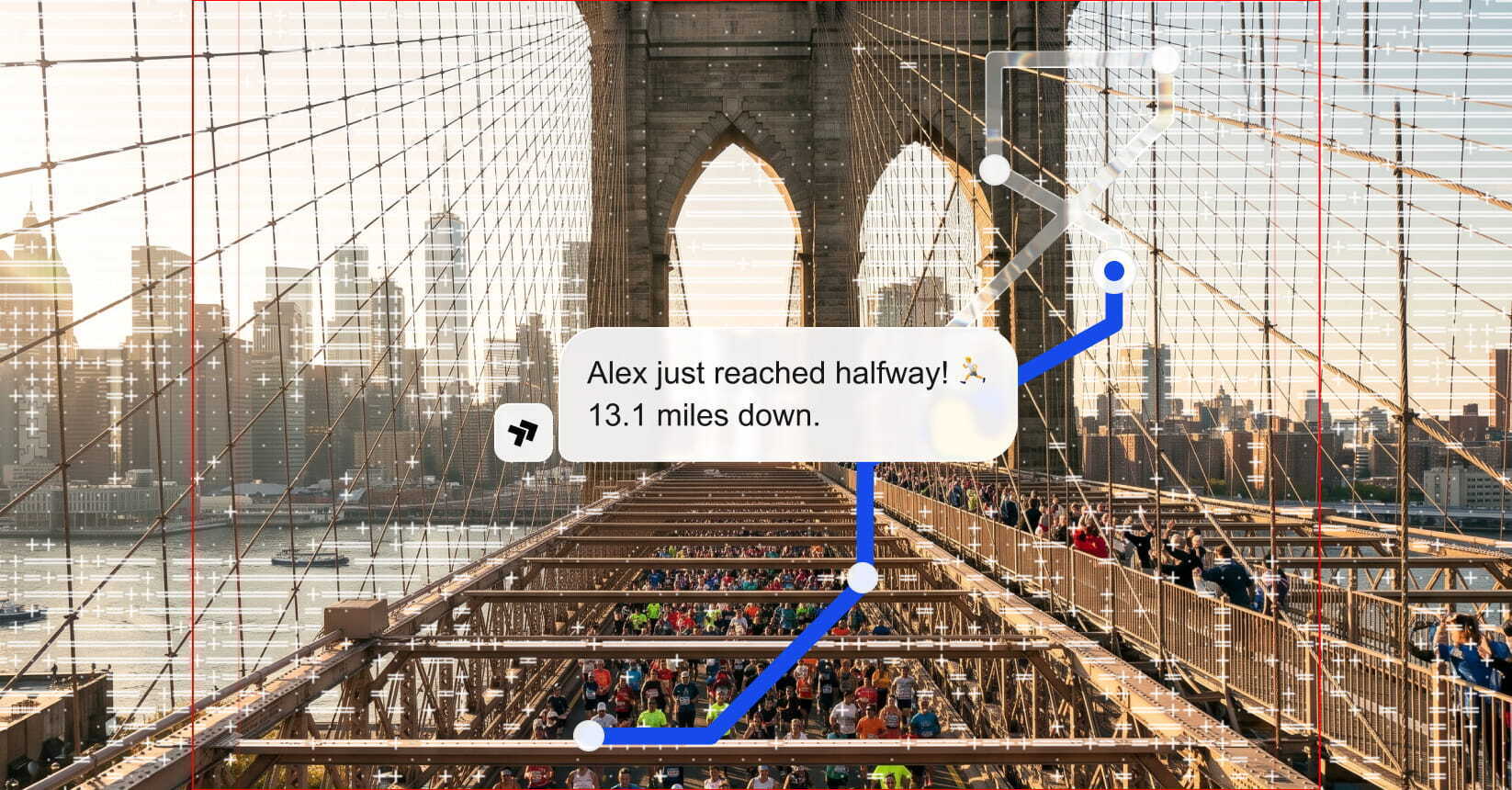
Runners share a link, friends pick the milestones they want, and everyone gets a text as the runner reaches them. Here’s how we built it in an afternoon with the Sent API.
Josh W and Emily Z
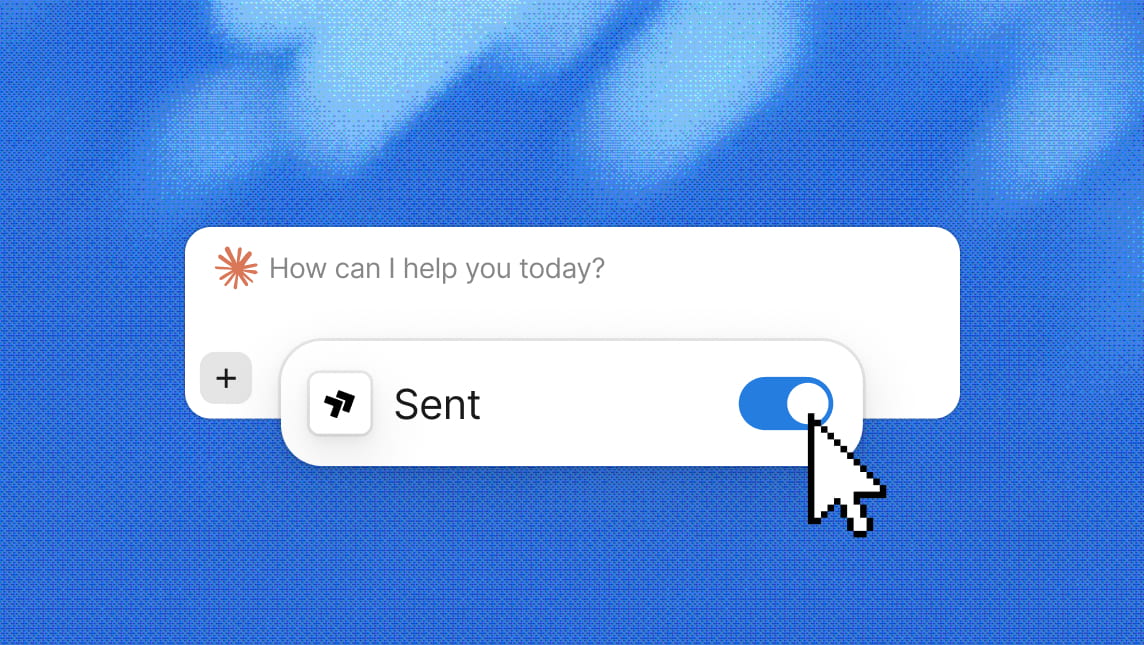
Send SMS, WhatsApp, and RCS from Claude, check delivery, look up a number, and see what you need before you text a new country, all through the same gates as the API.
Emily Z
One API. Every channel.
Get Started
Four things are new:
If you’re new to messaging: A template is a message you define once with variables, and send many times. Before you can send one, WhatsApp (run by Meta) reviews and approves it, and SMS carriers filter what you send for things like trigger words or a missing opt-out line.
Most of what’s new in this editor is about getting through those reviews the first time.
See it on every channel
A phone preview renders the message on each channel it goes out on, and updates as you type.
Each preview renders what that channel will actually send, so the tabs will often look different. A message that reads well with bold and a header on WhatsApp may need a second look as three plain SMS parts.
Edit WhatsApp headers, footers and buttons in place
Headers, footers and buttons now sit inside the WhatsApp message, in the order the recipient sees them.
How you write the text hasn’t changed. One shared text goes out on every channel by default - WhatsApp adds the header, footer and buttons, and SMS and MMS get the plain text. You can override the text for any channel by switching to its tab and rewording it there. Formatting like bold, lists and quotes exists only on the WhatsApp tab, since that’s the only channel that renders it.
MMS is optional. Use its tab only when you want a subject line, attachments or different wording. Otherwise MMS sends the shared text, or the SMS text if you wrote one.
Variables are named. A variable you call
order_idisorder_idin the editor, in the preview and in the send call, and you can reuse it anywhere in the template.Live message checks
Open the Checks tab in the side panel and the editor reviews your message in real time. The checks depend on which tab you are on, because WhatsApp and SMS are reviewed by different parties for different things.
WhatsApp templates are reviewed by Meta. On the WhatsApp tab and the shared text, the checks mirror that review: category, language and content rules. A common rejection is a template submitted as UTILITY - a transactional message like an order update - that reads as MARKETING. The Checks tab flags it and offers to switch the category.
Meta also rejects templates with too many variables for the amount of text around them. The editor shows the words-per-variable number under the text, counted the way Meta counts it, so you see the number Meta will see.
SMS is filtered by carriers. On the SMS and MMS tabs, the checks mirror what carriers look for: an opt-out line such as “Reply STOP to unsubscribe” or trigger words that can get your messages blocked.
Flagged words are underlined in the text. Fixes with a clear answer, such as adding an opt-out line, are offered in the panel.
Two things to know:
See what each SMS part costs you
Long SMS messages are split into parts, and you pay per part. How many characters fit in a part depends on the characters you use:
The message looks the same on screen, but it costs more than twice as much to send.
Under the SMS text, the editor now shows the encoding and the part count, and underlines each character that shrank the parts. Click one and it’s swapped for a plain equivalent: ’ becomes ' and — becomes -.
This is separate from the Checks tab. It’s always on, and the fix is on the character itself.
Ask AI
AI can draft a message based on your description. Select any text and it can rewrite it, change its tone, or explain what it does and why a check flagged it. Note that this is a writing aid, not a reviewer.
Take the template into your code
The side panel has two tabs for developers.
API tab: the JSON that creates the template you’re looking at, as a body for
POST /v3/templates. If you prefer to keep templates in code: design one visually, copy the JSON, and check it in. Any media you add in the editor is stored on s.dm, Sent’s media host, and submitted to Meta as the review sample. If you create templates from JSON, the media sample has to be an s.dm link.Code examples tab: appears once the template is saved. It holds a
POST /v3/messagescall that sends this template with its variables filled in, in cURL, TypeScript, Python, C# and Java. The variable names are the ones you see in the editor, including the variable behind a dynamic URL button.curl -X POST https://api.sent.dm/v3/messages \ -H "Authorization: Bearer $SENT_API_KEY" \ -H "Content-Type: application/json" \ -d '{ "to": ["+14155551234"], "channel": ["whatsapp", "sms"], "template": { "name": "order_confirmation", "parameters": { "name": "Maja", "order_id": "84213" } } }'Notice that the call lists channels but doesn’t choose one. The template already holds the WhatsApp version and the SMS version, so your code sends the template and Sent picks the channel for each recipient.
Either way, you get back a message ID to track it.
Review, and what’s next
Review works the same as before:
The new editor is live on every account. Open a template you already use, switch to the SMS tab, and see what the checks and the part count say about it. Or start a new template and watch it take shape on each channel as you write.